
How to
How to vectorize an image
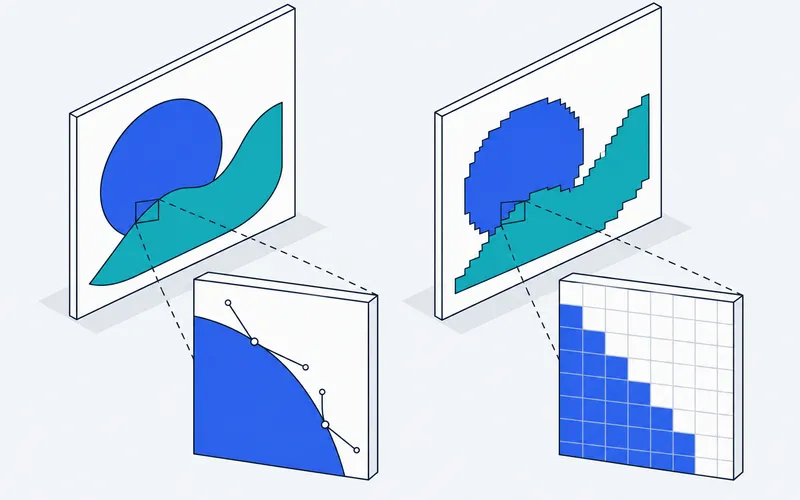
Vectorizing redraws a picture as shapes instead of pixels. That turns a fuzzy logo into a crisp one you can print on a banner, a photo into bold poster-style art, and a pencil sketch into clean lines you can color or cut. Everything happens in your browser, so your image is never uploaded.
- Pick what you are vectorizing. Each preset sets the colors, noise filter and smoothing for a kind of picture: a logo, a photo, line art, a scan or pixel art.
- Add your image. Drop a photo, logo or drawing onto the box, pick one from your device, or paste a copied image.
- Fine-tune. Fewer colors give flatter, cleaner art. A higher speck filter drops noise and tiny islands. Simplify curves irons out wobbly edges.
- Download the SVG. Open it in Illustrator, Inkscape, Figma, Canva or Cricut Design Space, or send it to a sign maker or engraver.
In Illustrator, Photoshop or Inkscape
A desktop editor can trace a picture too. The menu paths below come from each maker's own help pages, which we read on September 30, 2026. Menus move between versions, so check the help for the version you have.
How to vectorize an image in Illustrator
Adobe calls the feature Image Trace.
- Choose File > Place, pick the image and place it on the canvas.
- Choose Window > Image Trace to open the Image Trace panel.
- Pick a preset from the Preset dropdown. The trace result replaces the original image. To vectorize a logo, set Mode to Color and use the Colors slider to set the number of colors. Noise sets the size of the small areas the trace ignores.
- Select Expand in the panel to turn the result into editable paths. Adobe notes that once you expand, you can no longer adjust the tracing options.
- To save the result as an SVG file, choose File > Export > SVG (svg). Check Use Artboards if you want each artboard exported as its own SVG file, then click Export to open the SVG Options dialog. To export only part of the design, select it and choose File > Export Selection > SVG (svg).
How to vectorize an image in Inkscape
Inkscape is free, and its tracer is called Trace Bitmap.
- Choose File > Import to bring in the image, then select it with the Selector tool.
- Choose Path > Trace Bitmap, or press Shift + Alt + B.
- Pick a mode. Inkscape's guide calls Brightness cutoff the most frequently used one, and it gives a silhouette-like path. Multiple scans keeps more detail and creates a separate object for each scan. Use Update to refresh the preview, then apply the trace. The result sits exactly on top of your picture.
- Choose Path > Simplify, or press Ctrl + L, to reduce the number of nodes.
How to vectorize an image in Photoshop
Photoshop is the odd one out. Adobe's help says Photoshop creates raster images by default and that Illustrator is the app that specializes in vector creation. Image Trace is an Illustrator feature, and the Photoshop help pages we read do not describe a command that traces a whole picture in color. What they do describe is turning one outline into a vector path:
- Make a selection around the shape with any selection tool.
- Choose Make Work Path from the Paths panel menu and enter a Tolerance from 0.5 to 10 pixels. A higher value uses fewer anchor points and gives a smoother path.
- Or try the Content-Aware Tracing tool, which Adobe lists as a Technology Preview. Turn it on under Preferences > Technology Previews, restart Photoshop, pick the tool from the Pen tool group, point at an edge and click to create a path along it.
Adobe's help also lists SVG among the formats under File > Export > Export As in Photoshop. That page does not say whether a photo comes out as vector shapes or as pixels stored inside an SVG file, so open the result and zoom in before you rely on it.
The tool on this page is the quicker route when you have no editor installed, or when you just need an SVG of a logo or a picture right now: drop the image in, pick a preset and download, with nothing to install and nothing uploaded. If you plan to keep reshaping the paths by hand afterwards, do the trace in Illustrator or Inkscape, where the editing tools are.
What you can vectorize
- A logo you only have as a small or blurry image. Recreate it as a vector for printing, embroidery or a website. The logo preset keeps a handful of flat colors and drops the background.
- A photo. Get a stylized, poster-like version of the picture made of flat color regions. It is an effect, not a copy: a portrait becomes a bold illustration, a landscape becomes layered shapes.
- Line art and silhouettes. The one-color preset turns high-contrast pictures into a single clean layer, which is what stencils, vinyl cutters and laser engravers need.
- Sketches, scans and signatures. Photograph or scan the drawing on white paper in good light, then use the scan preset to keep fine strokes.
- Pixel art. Each pixel becomes an exact square, so game sprites and icons scale up with no blur.
Turning a photo into vector art
A photo has millions of shades, and a vector made of millions of shapes is useless. The poster preset limits the picture to 8 flat colors: Snap to exact colors picks the main colors and moves every pixel to the nearest one, and the speck filter drops the tiny islands that are left. Use 3 to 5 colors for a bold screen-print look and 12 to 16 for a softer illustration. For a single-color silhouette of a person, pet or object, switch to Line art and stencils.
Always start from the largest version of the image you can find: a 1000 px logo traces far better than a 150 px thumbnail.
Recreating a logo for print
Keep Snap to exact colors on and set the maximum colors to the number of colors in the logo, counting the background. If a thin detail disappears, add one more color. Every color becomes a clean shape you can recolor to your exact brand values.
Just need a file in SVG format?
If you want a straight format conversion rather than an art effect, use the converter for your file type. The PNG to SVG converter keeps transparent areas empty and is tuned for crisp PNG edges. The JPG to SVG converter cleans up JPEG compression artifacts and removes the solid background a JPG always has.
What powers the vectorizer
Tracing is done by VTracer, an open source vectorization engine, compiled to WebAssembly so it runs at near native speed in the browser. See the About page for credits and licenses.
Questions people ask
What does vectorize an image mean?
It means redrawing a pixel image as vector shapes: outlines and curves with a fill color. A JPG or PNG stores color dots, so it blurs when you enlarge it. A vector file such as SVG stores the shapes themselves, so it stays sharp at any size and can be edited, recolored or cut by a machine.
How do I vectorize an image?
Open the image in a tracing tool like the one on this page, choose a preset that matches the picture (a logo, a photo, line art or a scan), adjust the number of colors and the speck filter until the preview looks right, then download the result as SVG. You can then open it in Illustrator, Inkscape, Figma or Cricut Design Space.
Is there a free way to vectorize an image?
Yes. This vectorizer is free, has no sign-up and no watermark, and runs in your browser, so your image is never uploaded. Inkscape, a free desktop app, also has a Trace Bitmap feature if you prefer to work offline.