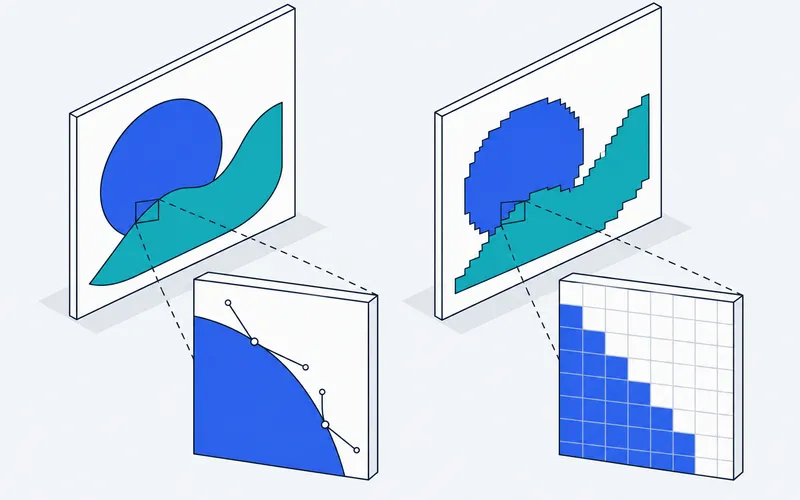
SVG and PNG are two of the most common image formats on the web, and they work in opposite ways. A PNG stores a grid of pixels. An SVG stores shapes. That one difference decides which one you should use for a logo, a website, a cutting machine or a photo. This guide compares them, shows a real logo in both formats, gives file sizes we measured ourselves, and answers the questions people ask most.
SVG vs PNG: The Short Answer
| You are working with | Use | In one line |
|---|---|---|
| A logo | SVG for the master, PNG for places that cannot take SVG | SVG stays sharp at any size |
| A website icon or diagram | SVG | Small, sharp, styled with CSS |
| A photograph | Neither: JPEG or PNG | SVG cannot copy a photo’s detail |
| A screenshot | PNG | It is made of pixels already |
| A cutting machine | SVG | Cutters follow outlines |
| Slides and documents | PNG is the safest, SVG works in Microsoft 365 | See the section on documents |
If you want the reasoning, read on. If you need a general explanation of the two families, our guide to vector vs raster images covers the basics.
How Each Format Stores an Image
PNG: A Grid of Pixels
The W3C describes PNG as an extensible file format for the lossless, portable, well-compressed storage of static and animated raster images. It supports indexed-color, greyscale and truecolor images, plus an optional alpha channel for transparency. A raster image is a rectangular grid of tiny colored pixels, so a PNG has a fixed width and height in pixels. Enlarge it beyond that, and the software has to invent pixels, so the edges get soft or blocky.
Lossless means the file keeps every pixel exactly. MDN says PNG is preferred over JPEG for more precise reproduction of source images, or when transparency is needed.
SVG: A Set of Shapes
SVG, Scalable Vector Graphics, is a language for describing two-dimensional graphics, in the W3C’s words. It allows three kinds of objects: vector shapes made of straight lines and curves, images and text. MDN calls it a text-based, open web standard for images that can be rendered cleanly at any size and that work with CSS, the DOM and JavaScript. Because an SVG is text, you can open it in a text editor.
SVG vs PNG for a Logo
For a logo, SVG is the better master file. A logo is made of clean shapes, and SVG keeps those shapes as shapes, so the logo can go on a business card and a billboard without going soft.
Here is a small sample logo as a PNG on the left and as an SVG traced from it by our converter on the right, both magnified eight times at the tip of the wave.
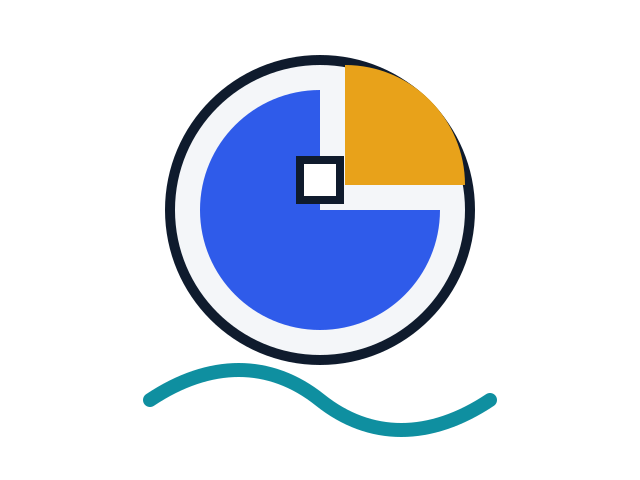
Before: the PNG at 8x
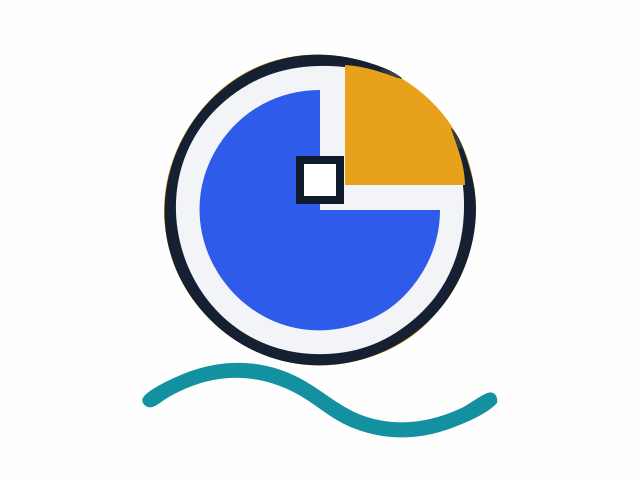
After: the SVG at 8x
The end of the teal wave, magnified eight times. The PNG shows stair steps at its edge, and the SVG stays smooth. The trace is also an approximation: this wave end is a little thinner in the SVG than in the PNG. Sample logo made for this guide.
The SVG is smooth at this size because the wave is stored as a curve. Notice, too, what the SVG cannot do: it cannot add detail that was not in the PNG. Our converter turned this PNG into 11 shapes, and the curve is only as good as the tracing.
Keep a PNG Copy Too
Some places, such as social networks, email programs and older software, do not accept SVG or handle it poorly. Export your logo as a PNG at a few sizes and keep them next to the SVG.
SVG vs PNG for a Website
On a website, SVG is the natural choice for icons, logos and diagrams. MDN says SVG files are ideal for diagrams, icons and other images that can be drawn accurately at any size. The W3C adds that SVG content is styled with CSS and has a full DOM, so a page can recolor an inline SVG or change it with script.
Recoloring and Editing
Because an SVG is text, you can change it without redrawing. Open it in a text editor and change a color code, or, on a web page, style it with CSS. A PNG has no shapes to select, so changing its color means repainting pixels in an image editor. This is one of the practical reasons designers keep the SVG as the master and export PNG copies for places that need them.
Photos and Screenshots on the Web
Use a raster format. MDN’s guide recommends JPEG for lossy compression of still images and PNG when you need precision or transparency. It also mentions other formats, WebP and AVIF, for better compression, but that is a separate topic from SVG vs PNG.
Browser Support
MDN’s image guide lists SVG as supported in Chrome, Edge, Firefox, Opera and Safari. That covers the browsers most people use. The bigger practical question is not the browser but the program that receives the file.
Documents and Slides
Microsoft says Word, PowerPoint, Outlook and Excel for Microsoft 365 on Windows, Mac and Android support inserting and editing SVG files, and that you insert them like any image: Insert, Pictures, This Device. That covers modern Office. Google’s help page for Docs and Slides describes Insert, Image, Upload from computer, and does not say whether SVG is accepted. So for Google Docs and Slides, we suggest PNG, and we make no claim that SVG fails.
SVG vs PNG for Cutting Machines
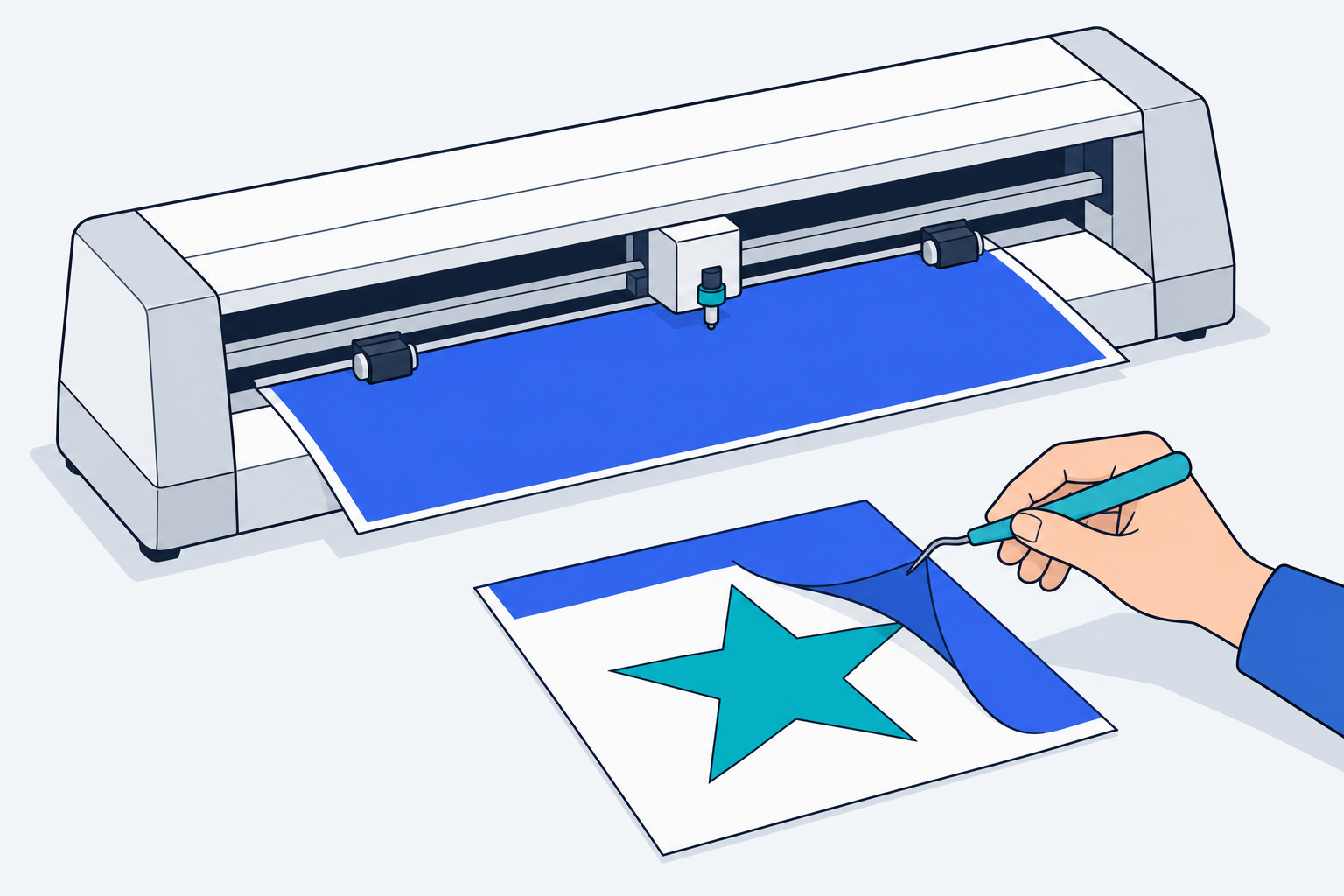
Cutting machines work from outlines, and SVG is an outline format. Cricut’s Design Space help page says there are two kinds of uploads: basic images, also known as raster images, which include .jpg, .bmp, .png and .gif, uploaded as a single layer; and vector images, which include .svg and .dxf, described as cut-ready images that upload as designed. Layered SVG files are separated into layers after uploading.
So for Cricut, SVG is the one meant for cutting. A PNG will upload, but as a flat raster you then have to work with. We read only Cricut’s page. We have not checked Silhouette, Glowforge or other brands, so read your machine’s help page.
Print and DTF
We did not verify print or direct-to-film (DTF) file requirements from a vendor source, so we will not state rules for them. Ask your print shop for the format and pixel size they want. As a general point, if you need a raster for print, export the PNG at the largest size you will need.
File Size: What We Measured
We measured our own sample files on 29 September 2026 with the wc -c command. The SVGs were made by our vectorizer from the raster files next to them.
| Sample | Raster file | SVG made with our vectorizer |
|---|---|---|
| Flat logo, 640 by 480 | PNG, 21,295 bytes | 2,696 bytes, 11 shapes |
| Logo with JPEG noise, 480 by 360 | JPG, 7,192 bytes | 5,283 bytes, 12 shapes |
| Landscape illustration with gradients, 1200 by 800 | JPG, 23,266 bytes | 9,772 bytes, 21 shapes |
For the flat logo, the SVG was about an eighth of the size of the PNG. But this is three files, not a law. An SVG’s size grows with its number of shapes. A very detailed image traced into thousands of shapes can end up bigger than the raster original, and we did not measure that case. The landscape SVG is also a simplified poster and not a copy, as our vector vs raster guide shows.
Transparency in SVG and PNG
PNG supports an optional alpha channel, so parts of the image can be transparent. An SVG has no pixels, so it is transparent wherever no shape is drawn. There is one catch with traced files. If the original image had a white background, the tracer draws a white rectangle behind the logo. Our sample SVG above does that: its first shape is a full-size near-white rectangle. Our converters can find a flat background color from the edges of the image and remove it, so the inside of the logo is kept.
Animation in SVG and PNG
Both can move, in different ways. The W3C’s PNG specification (third edition) covers animated as well as static raster images, so an animated PNG is a sequence of pixel frames. An SVG is animated by changing its shapes: MDN notes that SVG is designed to work with CSS, JavaScript and SMIL, the web standards a page uses to style, script and animate it. For a moving icon on a website, SVG keeps every frame sharp. Our tools make still images only, so we did not compare the two in practice.
Do SVG Files Lose Quality?
Resizing an SVG
No. Because an SVG is a set of instructions, it is redrawn sharply at any size. That is the promise of the format.
Converting a Raster Image to SVG
Yes, some. Wikipedia notes that converting raster to vector, or vector to raster, loses some information, although certain vectorization can recreate salient information, as in optical character recognition. A logo traces well because it was made of shapes. A photo does not. Our converters reduce a photo to flat color areas, which looks like poster art.
Disadvantages of SVG and When Not to Use It
- Photographs. A photo has no clean shapes. Use JPEG or PNG.
- Complex images. Every shape adds bytes, and a very detailed SVG can get heavy.
- Code in the file. Wikipedia notes that SVG can include JavaScript, potentially leading to cross-site scripting. Our conclusion, not a source’s: treat SVG files from unknown senders with the same caution as any file that can carry code. Do not upload one to a site that displays it unless the site handles that risk.
- Program support. Microsoft documents SVG support for Microsoft 365 and the recent versions its page lists, not for every older Office. Google’s Docs page does not mention SVG at all. Test before you send.
- Accuracy of the source. A tracing is only as good as the picture it was made from.
We did not find a single authoritative source that lists every drawback of SVG, so this list is our editorial summary of the points we could support.
Is SVG the Highest Quality?
Not for every image. For a logo or an icon, SVG is the highest quality in the sense that it is perfectly sharp at every size. For a photograph, a PNG or a JPEG holds the real pixels, and an SVG can only approximate them. “Highest quality” is a question about the fit between the file and the image.
How to Convert PNG to SVG
If you have a PNG logo and need an SVG, trace it. Our tools run in your browser, so your image is not uploaded. They use VTracer, an open-source converter that, its authors say, produces more compact output than Illustrator’s Image Trace. On a typical logo the conversion takes a fraction of a second on our development machine, and a large gradient can take several seconds.
Choose the tool that fits your file, or drop it on the SVG converter, which checks the format, the transparency and the number of colors on your device and opens the matching tool with your image loaded:
- The PNG to SVG converter is tuned for PNG files, including transparent ones.
- The JPG to SVG converter smooths JPEG noise and removes a flat background.
- The vectorize image tool has presets for logos, photos, line art and scans.
Here is a fuzzy JPG logo, with the compression noise around its edges, and the SVG made from it. The noise is smoothed into flat shapes, though a trace can leave small flaws, so check the result at a large size.

Before: a 480 px JPG logo with noise, at 5x

After: the SVG, 12 shapes, at 5x
Compression noise around the edge of the leaf in the JPG, and the smoother edges in the SVG. A thin olive outline of the blended edge color remains in the SVG, so a trace is not flawless. The tool's snap-to-exact-colors step reduced one JPG logo from 91 shapes to 10 in our test, which is one example and not an average. Sample logo made for this guide.
SVG vs PNG: A Checklist
- Is it made of clean shapes, such as a logo, icon or diagram? Use SVG.
- Is it a photo or a screenshot? Use PNG or JPEG.
- Does a cutting machine need it? Use SVG, and check the machine’s help page.
- Are you sending it to a program that may not take SVG? Send a PNG.
- Will it be shown large and small? Keep an SVG master and export PNG copies.
Summary
PNG stores pixels and SVG stores shapes. Use SVG for logos, icons, diagrams and cutting, and PNG for screenshots, for photos that need precision, and for places that do not take SVG. Keep the SVG master and export PNG copies. Convert a raster logo with the PNG to SVG converter and check the result at a large size before you rely on it.
Questions people ask
Do SVG files lose quality?
Not when you resize them. An SVG stores shapes as instructions, so it is redrawn sharply at any size. Quality can be lost earlier, when an SVG is made by tracing a PNG or a photo, because some detail is lost in converting pixels to shapes. Converting the other way, to a PNG, fixes the size.
When should you use SVG files?
Use SVG for logos, icons, diagrams and charts, anything made of clean shapes that must stay sharp at every size. MDN calls SVG files ideal for diagrams, icons and other images that can be drawn accurately at any size. Also use it when a cutting machine needs outlines or you want to recolor with CSS.
What are the disadvantages of SVG?
SVG is a poor fit for photographs, which need a huge number of shapes to copy. A complex SVG can also be larger than a PNG. It can carry JavaScript, so treat files from unknown sources with care, and not every program takes it. We did not find one authoritative list of drawbacks.
When not to use SVG?
Do not use SVG for photographs or screenshots, which are made of pixels and are stored better as JPEG or PNG. Skip it when the tool you are sending it to only accepts PNG or JPEG, or when you cannot trust the file's source, since SVG can include JavaScript. For Google Docs, we recommend PNG.
Is SVG the highest quality?
It depends what quality means. For a logo or icon, SVG stays perfectly sharp at any size, which no PNG can match. For a photograph, SVG is not higher quality: a JPEG or PNG keeps the real pixels, while an SVG can only approximate them with shapes. Quality means fit for the image.
Do I use SVG or PNG for Cricut?
Cricut's help page says Design Space treats .svg files as vector images that upload as designed, and .png files as basic raster images that upload as a single layer. For cutting shapes, SVG is the one made for it. We read only Cricut's page, so check your machine's rules.